
Start with 16 GB of system or unified memory for ordinary local chat. If your computer already has 8 GB, try a 1B to 4B model in a compact format before upgrading. If you’re shopping for a machine to run a 27B- to 32B-class model, 32 GB gives you more room for context and other applications than a 24 GB configuration. Treat those tiers as starting points. The artifact, context size, and runtime determine what actually fits.
The most reliable way to answer “how much RAM do I need to run a local LLM?” is to budget for the exact model file and the session you want to run. A small app that labels emails has a different memory profile from a coding agent that holds source files and tool results in its conversation.
- Count the downloaded weights, the attention cache, and the runtime’s working memory.
- Reserve room for the operating system and the apps you’ll keep open.
- Check whether those bytes can sit in the memory your inference backend uses.
- Test a long, representative session before buying hardware or committing to a model.
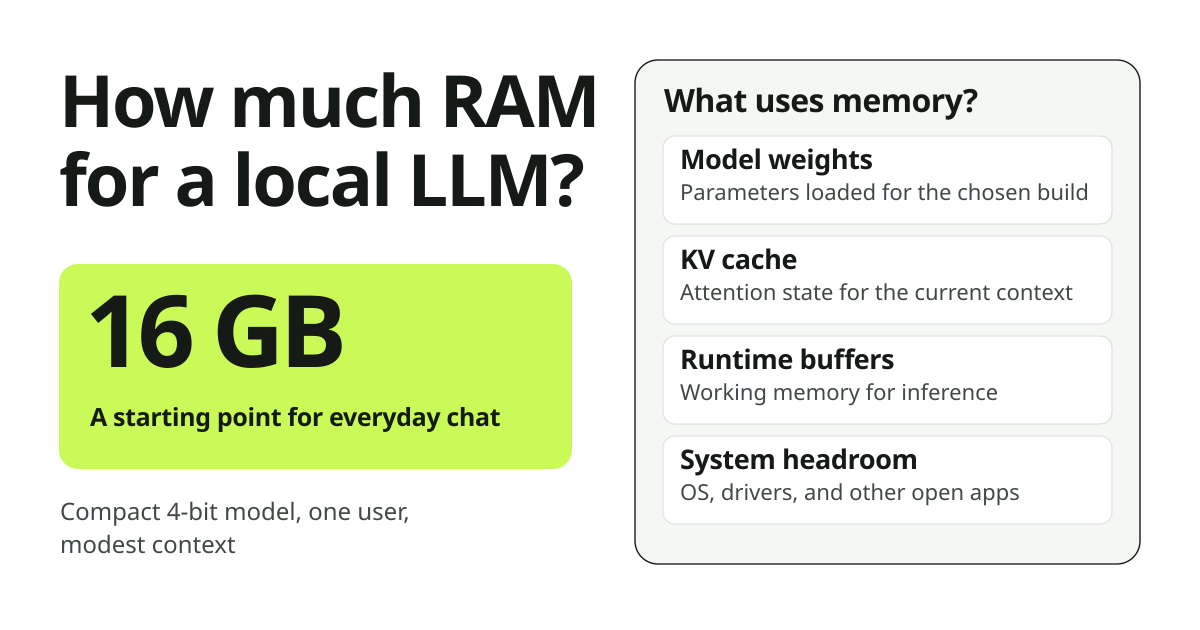
How much RAM does a local LLM need at each tier?
These estimates are starting points for conventional models using compact 4-bit-class weights, with one user and a modest context. The weights-only column is ideal arithmetic at four bits per parameter, rounded in decimal GB. Real files typically take more space because the format stores information such as quantization scales and may keep some tensors at higher precision. For GPU-only inference, the relevant available budget is VRAM or GPU-accessible unified memory. For CPU inference, it’s available system RAM. llama.cpp quantization reference
| Installed memory | Starting model class | Ideal 4-bit weights only | Where the tier gets tight |
|---|---|---|---|
| 8 GB | 1B–4B | 0.5–2 GB | Browser tabs, long prompts, or a larger model alongside other apps |
| 16 GB | 7B–8B | 3.5–4 GB | Large context settings, concurrent sessions, or higher-precision variants |
| 24 GB | 14B class, with room to evaluate compact larger builds | 7 GB for 14B | A 27B–32B file can leave less room for cache and runtime buffers |
| 32 GB | 27B–32B class | 13.5–16 GB | Long contexts or CPU and GPU competing for the same pool |
| 64 GB | 70B class | 35 GB | The actual file, cache, and working set can still rule out a given build |
Read this table from your workload back to the model. If you want to summarize a short note, you have room to experiment on a machine you already own. If you need to keep an editor, a browser, and a local assistant open all day, budget for those at the same time. Two computers with identical installed memory can have different room left once their applications and display allocations are accounted for.
What goes into the memory budget?
1. Model weights
For a rough first pass, multiply the parameter count by the weight bit width and divide by eight. An 8B model’s ideal weight footprint is 16 GB at 16 bits, 8 GB at eight bits, or 4 GB at four bits. Then verify the actual download for the precise build you plan to run. For example, llama.cpp reports 4.58 GiB for Llama 3.1 8B at Q4_K_M and 7.95 GiB at Q8_0. Those are file sizes for that project’s documented builds. llama.cpp quantization reference
A download listing may use decimal GB while a runtime prints binary GiB. One GiB is 1,073,741,824 bytes. Start with bytes when comparing figures from different tools. For a sharded checkpoint, add all the shards for the chosen variant. Include the projector for multimodal models or an auxiliary model if your runtime actually loads one.
2. The key-value cache
A transformer can save key and value tensors from attention so it can reuse them as it generates the next token. That saved state is called the key-value cache, or KV cache. Its size depends on the architecture, cache precision, number of tokens, and number of live sequences. When the runtime uses a static allocation, it may reserve memory for the configured context up front. Hugging Face cache explanation, Transformers cache strategies
In Qwen2.5-7B-Instruct, the published config specifies 28 layers, four KV heads, and a head dimension of 128 derived from the hidden size and query head count. At two bytes per cached element, a conventional full-attention layout uses 56 KiB per token per sequence. That’s about 224 MiB at 4,096 tokens and 1.75 GiB at 32,768, before allocator overhead. An application that sends the entire conversation, a system prompt, and tool output can approach the configured context even when the user’s latest message is short. Qwen2.5-7B-Instruct config
3. Runtime overhead and headroom
Inference backends allocate working space for operations, temporary tensors, and communication. Batching prompt tokens can change the size of these buffers. Drivers, an OS, and other running software also need memory, and the usable budget changes as you open and close applications. This is the part of the spreadsheet to replace with observation once you have a candidate running. On macOS, Activity Monitor reports memory pressure and swap use. Record their baseline and whether they rise during prompt processing and generation. llama.cpp runtime settings, Apple Activity Monitor memory guide
Where do the weights actually live?
A PC can have a large system-RAM pool and a smaller VRAM pool on its discrete GPU. Full GPU offload requires the weights and relevant runtime allocations to fit in the GPU budget. Partial offload can put some layers or model tensors on the CPU, which gives you more capacity but changes execution and transfer costs. A CPU-only backend can use system RAM with a different speed profile. Check how your runtime has placed the model. Ollama, for instance, documents ollama ps as a way to see the CPU/GPU split. Ollama FAQ, llama.cpp offload settings
On an Apple Silicon Mac, the CPU and GPU can access a unified pool. That makes a Mac with a large unified-memory configuration interesting for a model that would exceed the VRAM in a particular discrete card. The same pool also holds the OS and the rest of the Mac’s working set. Apple Metal exposes a recommended GPU working-set size, which is another useful value to check when a model is close to the machine’s total. Apple Metal unified memory, Apple Metal working-set guidance
Some inference engines support another placement option. The Edge0-35B preview engine can keep its full expert weights on disk and bring routed experts into memory on demand. Its memory requirements depend on the engine’s placement, cache, and routing settings as well as the checkpoint format. Use its published platform and benchmark notes to assess that configuration. The conventional-resident tiers above are for a different execution model. Edge0-35B model guide, Edge0 benchmark methodology
How to check if a model fits your real workload
- Pick an exact build. Record the model name, precision or quantization, total artifact bytes, backend, and offload configuration. Download enough to run one candidate first.
- Set a realistic context. Count the instructions, user prompts, prior turns, attached text, tool results, and output allowance. Start with a short session and increase the context for a realistic one. For Ollama, compare the configured context with the value shown by your running model. Ollama context length
- Watch the machine during actual work. Keep the editor and browser open if that’s how you’ll use the assistant. Record peak GPU allocation or system memory pressure. Note whether swap grows and whether the machine remains responsive.
- Measure two waits. Record how long you wait for the first token and how quickly the answer appears once generation starts. Repeat with a short prompt and a long one. A build that loads successfully may still take too long to process the documents you care about.
- Change one variable at a time. If the problem begins only when a long conversation grows, lower the context or try a smaller cache format supported by your backend. If the model is already close to the limit at startup, choose smaller weights before spending time on the prompt. Transformers cache strategies
Write down the smallest setup that passes your task. For a coding assistant, that means editing a patch you can run through your project’s tests. For text extraction, count the misses against a sample with known fields. Once the smaller model passes, a larger one has to justify its extra memory with better results or a longer useful context.
FAQs
Is 8 GB of RAM enough for an LLM?
Yes for some compact models and short workloads. A 1B- to 4B-class model is a practical place to start, depending on the amount of memory already in use. Check the download size, then test the model with other applications running as usual.
Is 16 GB enough for a 7B or 8B model?
It’s a reasonable starting point with 4-bit-class weights and a controlled context. The sample 8B Q4_K_M file in llama.cpp’s reference is 4.58 GiB, leaving the rest of your available budget for the operating system, cache, and runtime. llama.cpp quantization reference
Can I run a model bigger than my VRAM?
Some runtimes can keep part of the model in CPU memory or fetch selected weights from storage. The supported technique depends on the model and backend. Measure prompt processing and generation under that placement, since an offload configuration changes the performance you’ll see. llama.cpp offload settings, Edge0 inference runtime
Does adding an SSD increase my model’s RAM budget?
More disk space lets you store more artifacts. A runtime with explicit streaming support can use storage for selected weights, while general OS swapping follows different policies. In both cases the storage traffic costs time. Check the model engine’s documented memory tiers before treating more disk space as part of the inference budget. Edge0 storage-offload documentation
How much RAM you need to run a local LLM comes down to the bytes your session uses at its peak and where those bytes can live. Start with a compact artifact, measure the workload you actually care about, and upgrade only when you know whether your limit is model size, usable accelerator memory, or context.